

 Tiếng Việt
Release notes: New clipboard for copying and pasting model and drawing objects
In Tekla Structures 2026, you can efficiently reuse model and drawing content with the new clipboard functionality, enabling you to easily copy and paste model objects and drawing objects. Now, each time you copy objects in a model or in a drawing, the objects are always copied to the clipboard. This allows you to later paste model objects into the current model or any other model, or to paste drawing objects into the current drawing or any other drawing in the same or another model, leading to substantial time savings on repetitive tasks.
Copying model objects using the clipboard
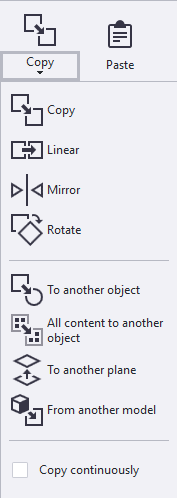
Model objects are copied to the clipboard when the following commands are used on the Edit tab:
- Copy
On the Edit tab, use the switch and the Paste command in conjunction with the above copying commands to copy and paste model objects.
Note that previously, if you wanted to copy model objects from another model, you had to use the From another model copying command with Phase Manager. Now you can simply select the objects in the source model, copy them to the clipboard, and then paste them into the current or any other model.
Additionally, you can now copy custom components without the need to export them. Use the command to copy custom components from one model to another.
Copying drawing objects using the clipboard
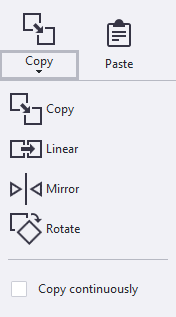
Drawing objects are copied to the clipboard when you use the Copy command on the Drawing tab.
On the Drawing tab, use the switch and the Paste command in conjunction with the Copy command to copy and paste drawing objects.
Controlling clipboard copying
-
When the Copy continuously checkbox is selected, the selected objects are copied to the clipboard, and the copy command remains active. You can insert the copied objects repeatedly into the model, or into the drawing, or use the Paste command to insert the copied objects from the clipboard.
-
When the Copy continuously checkbox is cleared, the selected objects are copied to the clipboard and the copy command is interrupted. Use the Paste command to insert the copied objects into the same model or into another model, or into the current drawing or any other drawing in the same or another model.
The last copied objects always remain on the clipboard, and you can later use the Paste command to insert the objects from the clipboard.
Keyboard shortcuts
Use the keyboard shortcuts Ctrl+C and Ctrl+V for quick copying and pasting from the clipboard.
Notes and limitations
-
The model and drawing objects that you want to copy using the clipboard to another model have to be saved in the source model before starting the Copy command.
-
If the source model objects or drawing objects that have been copied to the clipboard are modified in the model or in the drawing, the changes will also be updated in the clipboard. Therefore, when you start the Paste command, you will not get the object you copied originally, but the latest version of the object.
-
Clipboard is not supported for the following commands:
-
Copying to and pasting from the clipboard only work with specific drawing object types. The supported objects are:
- 2D library details
- lines
- polylines
- rectangles
- polygons
- circles
- arcs
- insulations
- clouds
- symbols
- texts
- embedded text files
- embedded DWG and DXF files
- embedded images
- revision marks
- section marks
- detail marks
- weld marks
- You cannot use clipboard copying for the following drawing objects:
- associative annotations: associative notes, part marks, bolt marks, rebar marks, and so on
- level marks
- drawing views
- templates
- drawing layouts
-
Copying of symbols and embedded images, DWGs/DXFs, and text files in drawings: Currently, Tekla Structures attempts to copy a file into a destination folder only if it is originally located in the model folder. If the file is located in any other folder, including shared environment or firm/project folders, it will not be copied. Objects located in shared folders are intended to be shared, not copied.
- When copying sketch objects between drawing views and drawings, consider the XS_SCALE_COPIED_OR_MOVED_OBJECTS_IN_DRAWINGS advanced option. This advanced option automatically adjusts the dimensions of sketch objects to match the scale of the target view.
TTSD-72476