

 Tiếng Việt
Below the lines are visible:
Release notes: Intuitive 2D sketching, editing, and annotations in drawings
Finalize designs efficiently with enhanced sketching, editing, and annotation tools. In Tekla Structures 2026, 2D drawing sketching, editing, and annotating are significantly enhanced through the renewed drawing mode ribbon, some new commands, and other major improvements.
-
The new Sketching tab is dedicated to sketching tools. The new, adaptive Insulation command enables efficient sketching and automatically adjusts to model changes. New sketching capabilities allow preselection of drawing sketch objects and precise numeric input during dragging. Shape positioning and status bar messages have been improved. Also the snap grid can now be visualized and center line snapping works better.
- The Drawing tab has been updated and reorganized. It now contains the new Copy continuously switch for selecting the copying mode and the Paste command for copying from clipboard. The new Rectangular cloud command and Cloud property pane enhance the flexibility in review clouds.
-
The improved Text and Text file features with the new, integrated Text editor allow you to add formatted project notes easily, quickly, and efficiently.
Renewed drawing ribbon


Dedicated tab for sketching tools
The drawing sketching tools have been moved to the new Sketching tab from the Drawing tab. Now that the sketching tools are all located on the same tab, they are quicker and easier to find and use.
The new Sketching tab:
- The new Sketching tab is available in all configurations that allow drawing editing.
- A new sketching command,
 Insulation, has been added on the Sketching tab.
 -
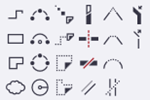
The command icons and labels are now clear, unified, and more intuitive. Previously, most of the sketching commands did not have any command names visible, only the tooltip indicated the command purpose.
Sketching commands on the ribbon in the previous Tekla Structures versions:
TTSD-71228
Renewed Drawing tab
The commands within the Drawing tab have been reorganized. The renewed Drawing tab:
-
The
 Copy and
  Move commands are now located next to each other on the Drawing tab together with the new
  Paste command, just like in modeling mode. The new Copy menu has a new switch, Copy continuously, for enabling or disabling continuous copying. The Copy command now always copies the selected objects to the clipboard.
 - All existing copying and moving commands are now located on the Copy and Move menus, including the
 Copy – Linear command, which could earlier be used through Quick Launch only.
 -
A new cloud command,
 Rectangular cloud, has been added for quick creation of rectangular clouds.
 - The old Cloud command has been renamed to
 Polygonal cloud.
TTSD-71262, TTSD-73921
Preselect drawing sketch objects
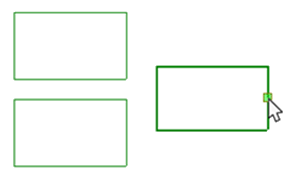
In Tekla Structures 2026, you can now preselect drawing sketch objects. When you move the mouse pointer over a sketch object, lines and handles are highlighted. This new feature simplifies selecting the correct handle for actions like resizing, making it easier to drag and reshape objects.
To enable the preselection of sketch objects, activate the Drawing drag & drop option in in drawing mode.
Previously, while dragging in drawings, it was not clear which object would be moved. Now, with the new preselection, you can use dragging with confidence.
TTSD-70792
Numberic input for dragging drawing sketch objects
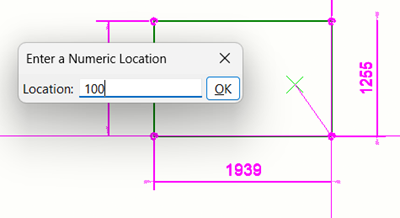
When dragging handles, lines, or midpoints of drawing sketch objects, you can now enter numeric values to specify the desired distance or location. This works in a similar way as direct modification in modeling mode.
-
To enter a numeric value, start dragging a handle, line, or midpoint. While dragging, begin typing the desired value on the keyboard. The Enter a Numeric Location dialog for typing the numeric value is displayed. Type a distance or coordinates. When ready, click OK or press Enter on the keyboard.
For handles, the numeric value tells how much you move the handle in the direction of dragging, whereas for lines and midpoints, the numeric value tells how much you move the line or midpoint perpendicularly.
TTSD-73232
Visualized Snap Grip
-
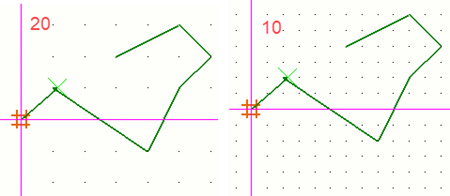
The snap grid in drawings is now visualized in the same way as in Template Editor, for example. To activate the snap grid, go to , select Activate and click OK.
-
The scale of the snap grid is now paper millimeters instead of view scale.
The first example below uses Spacing value 20 and the second example Spacing value 10:
TTSD-69608
Improved snapping to center lines
Snapping to center lines in drawings now works better, and you can easily snap to the actual center line end point, so that the snapped point is associative. This works best if you have set the advanced option XS_DRAWING_ALLOW_SNAPPING_TO_DISTANT_POINTS to TRUE. Previously, you would end up snapping to the center line extension.
TTSD-67770
New sketch object - Insulation
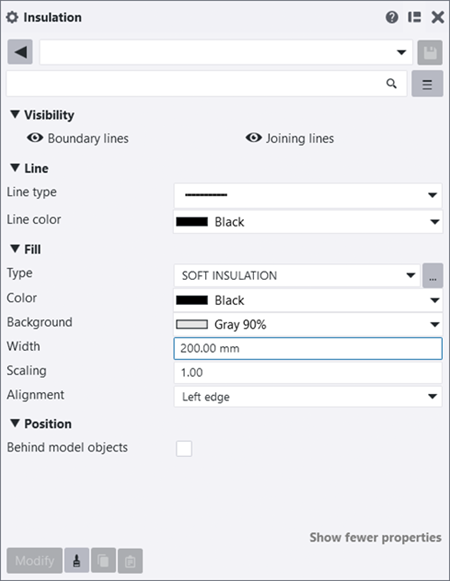
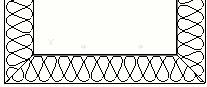
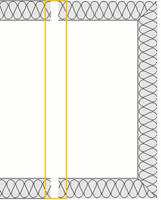
Tekla Structures 2026 introduces a new sketching command, Insulation, to simplify the process of creating and editing soft and hard insulation in drawings. Showing insulation in detail and section views is common especially in general design drawings. This new feature allows for quick and efficient sketching of insulation using a polyline-like input, ensuring details meet expected standards.
Flexible modification: You can modify the representation properties of the insulation before and after creation. Reshaping or resizing is easy with the insulation handles.
Easy access: The new Insulation command is available on the drawing Sketching ribbon tab, in the property pane object list, and through Quick Launch.
Customizable insulation patterns: You can use any available soft and hard insulation hatch patterns, including localized and customized patterns. Hatches automatically scale to fit the width and rotate as needed.
Associative: Insulation objects are associative if they have associativity points, meaning that they are associated with building objects.
The Insulation feature is part of a set of capabilities that enable the use of one Tekla software from the early phases of an AEC project through to completion. Previously, you had to design and use pattern lines or rely on imported DWGs with pre-made details for insulation.
-
In an open drawing, go to the new Sketching ribbon tab, hold down Shift and click
Insulation. Adjust the properties in the property pane: Select whether to show boundary lines or joining lines, set the line type and color, select the fill type, color, and background, and define the insulation width, scale, alignment, and position in relation to model objects. When you are ready, pick the points that the insulation will traverse. To create the insulation, click the middle mouse button or press Space or Enter on the keyboard.
-
You can modify properties of the created insulation by double-clicking it in an open drawing.
-
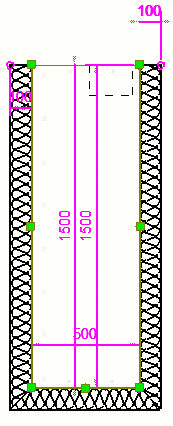
You can move insulation objects by dragging. You can also reshape or resize the insulation and move insulation segments by dragging the insulation handles.
-
You can also edit the width of the insulation by dragging a segment handle. This changes the width of the insulation and the value of the Width property in the property pane.
- You can also delete the selected insulation handles.
- Insulation is now available as an Object in the DWG/DXF/DGN drawing export, and can be defined to be exported on a specific layer/level.
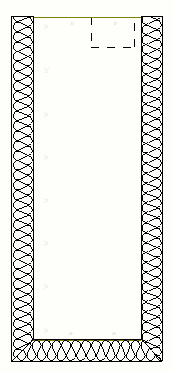
Below an example of left-aligned insulation with the SOFT INSULATION type and visible boundary and joining lines:
Below an example of left-aligned insulation with the SOFT INSULATION type and visible boundary and joining lines:
Below the insulation is shown without boundary lines or joining lines:
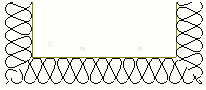
Insulations indicate part shortenings:
TTSD-71230, TTSD-72475, TTSD-73129
Create rectangular clouds faster
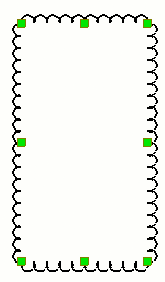
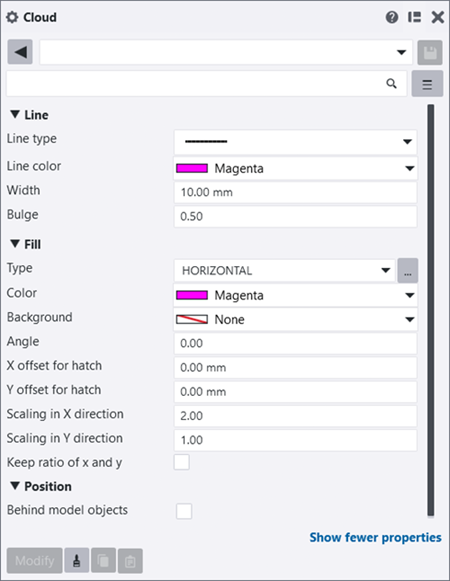
The new Rectangular cloud command allows you to create a rectangular cloud more quickly by simply picking two points. Previously, you had to use the Cloud command to create a polygonal cloud and then modify it into a rectangular cloud.
-
To create a rectangular cloud in an open drawing, go to the Drawing ribbon tab and click the
Rectangular cloud command. Pick the first corner point of the cloud and then the second corner point of the cloud. You can resize the cloud by dragging the cloud handles.
- The Cloud command has been renamed to Polygonal cloud.
-
The two cloud commands,
Polygonal cloud and Rectangular cloud, both use the new Cloud property pane to get their properties, streamlining their usage.
-
Previously, the Cloud command used the properties in the Polygon property pane.
- Now you can define the cloud arc width for each cloud instance separately in the Cloud property pane using the Width property. Previously, this setting could only be set for the entire model using the
XS_ARC_WIDTH_OF_CLOUDadvanced option. This advanced option has been hidden from the Tekla Structures user interface.
TTSD-72769, TTSD-72464, TTSD-72994
Other improvements in sketch projects
-
Improved status bar messages: The short instructions on the status bar have been improved to better explain the steps needed to use the drawing editing tools and to give you more feedback.
TTSD-71262, TTSD-71273
-
Exclusion of mouse position in final shape: The creation of sketch objects based on multiple clicks has been improved so that the mouse position is not included in the created shape when you click the middle mouse button or press Enter to complete the creation of the sketch object, such as a polyline.
Previously, an extra point was added at the location of the mouse pointer when the middle mouse button was clicked.
TTSD-72006
New Tekla Structures built-in Text editor
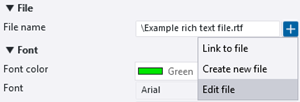

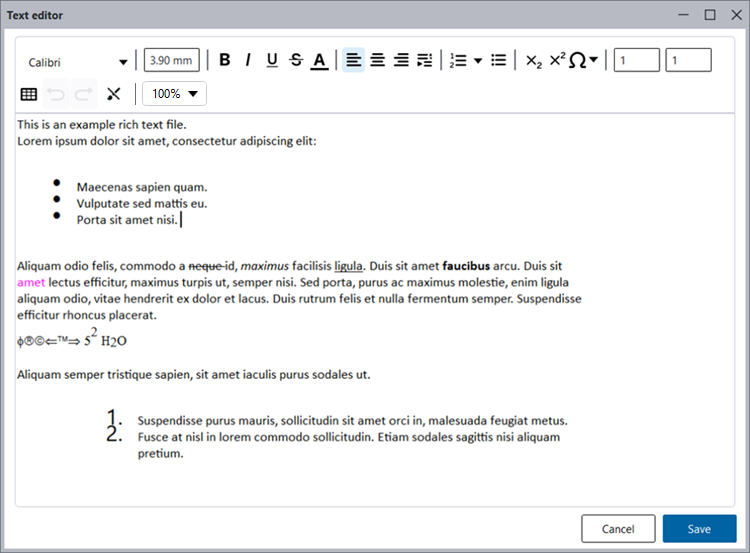
Both the Text object and the Text file object (previously Rich text) now allow using the new built-in Text editor for creating and editing of text content.
Open full Text editor
- Text file objects: In the Text file property pane, click the
 plus button and either link to an existing file or create a new file, and then open the linked file by clicking Edit file.
-
New files are by default saved in the current model folder, but you can change the location.
- Text objects: After adding the text in the drawing, in the Text property pane, click the
 Open full text editor button next to the Format list.
- Once you have added the text in the drawing, you can also open it in the full Text editor by double-clicking the added text.
How it works
-
The toolbar contains all basic rich text formatting options, and you can also add character symbols. All toolbar controls have informative tooltips. The controls are the same for Text objects and Text file objects, except that you cannot create tables in Text objects.
- You can change the zoom level by holding down the Ctrl key and scrolling the mouse wheel, or using the zoom level control on the toolbar.
- For Text objects with rich text content, if the text content limit is exceeded, a red border appears around the Text editor window, displaying the message: “Text content limit exceeded. Please reduce the amount of text to save changes.”
- When you save the edited and formatted text in the full Text editor, the Text editor closes, and the linked text file or the text in the Text property pane is updated.
- You can open, edit, and save plain text files (.txt) in the full Text editor, but you cannot apply any rich text formatting to those.
- The rich text files (.rft) no longer need to be created in Microsoft WordPad as you can create them directly with Tekla Structures.
- You can set the new advanced option XS_DRAWING_TEXT_FILE_OBJECT_USE_EXTERNAL_EDITOR to
TRUEto always use the associated external application for viewing and editing the .txt and .rft files rather than the Tekla Structures built-in text editor. The default value isFALSE, which means that the Tekla Structures built-in text editor is used.FALSEis the recommended setting to ensure you create Tekla Structures compatibleFALSEcontent.
Limitations
The .rft files created or modified in Tekla Structures 2026 or newer cannot be used in older Tekla Structures versions as they will not be compatible and no content will be displayed.
STP-593, TTSD-74966
Rich text support for Text objects
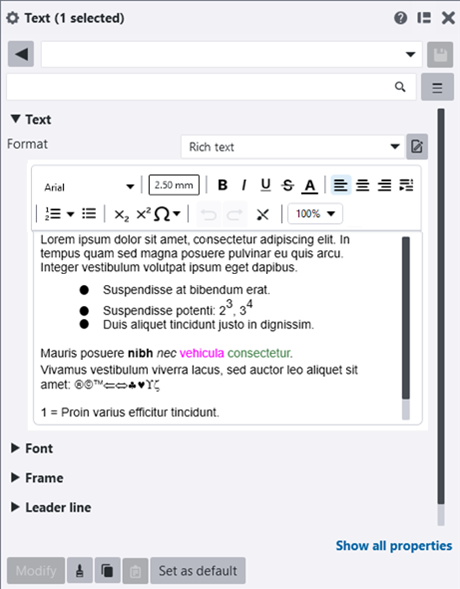
In addition to plain Text objects, you are now able to produce Text objects with rich text content directly in your drawings, without having to use external rich text files.
-
To apply rich text formatting in Text objects, select the Text command from the drawing property pane object list and select the Rich text option from the Format list in the Text property pane. You can then apply the rich text formatting directly in the property pane text editor using the formatting toolbar.
- The Plain text option allows you to enter plain text without formatting.
- The Text property pane toolbar contains the same controls as the full Text editor.
- If the text content limit is exceeded, a red border appears around the editor window with an exclamation mark. When you hover over the exclamation mark, the tooltip “Text content limit exceeded. Please reduce the amount of text to save changes.” appears.
STP-593
If you are a Tekla Structures administrator

If you manage Tekla Structures settings for other users, update customized settings for users.
Add the dedicated tab for sketching tools to the ribbon
If you have customized the ribbons, update your customized ribbon to the dedicated tab for sketching tools.
1. Add the new tab Sketching tab:
- Add ribbon item: Tab
- Text: Sketching
2. Move these buttons from the Drawing tab to the Sketching tab:
- Line
- Polyline
- Rectangle
- Polygon
- Circle
- 3 point circle
- Arc
- 3 point arc
3. Add a vertical separator to the right of these buttons:
- Add ribbon item: Separator
- Appearance: Orientation: Vertical
4. To the right of the separator, add the new Insulation button to the Sketching tab:
- Add ribbon item: Simple button
- Command: Shapes.DrawHatchline
- Appearance: Command: Scalable icon
- Text: Command: Short text
5. Add a vertical separator to the right of the Insulation button:
- Add ribbon item: Separator
- Appearance: Orientation: Vertical
6. Move these buttons from the Drawing tab to the right of the separator on the Sketching tab:
- Trim or extend
- Copy with offset
- Cut part lines
- Divide by n
- Split
- Straight chamfer
- Round chamfer
- Fillet
- Combine
- Explode
7. Add a vertical separator to the right of the Explode button:
- Add ribbon item: Separator
- Appearance: Orientation: Vertical
8. Move these buttons from the Drawing tab to the right of the separator on the Sketching tab:
- Cover-up line
- Cover-up polyline
- Cover-up rectangle
- Cover-up polygon
9. Arrange and resize the buttons on the Sketching tab so that they have this layout:
10. Save the changes.
The new ribbon configuration file is saved to ..\Users\<username>\AppData\Local\Trimble\Tekla Structures\2026.0\UI\Ribbons
11. Move the file to the Ribbons sub-folder in a folder that is in the XS_SYSTEM path.