

 Tiếng Việt
Release notes: Edit the model and general arrangement drawing together
Tekla Structures 2026 introduces a new efficient way of working that lets you modify a model and a general arrangement drawing simultaneously without having to close the drawing in between.
When working in a general arrangement drawing, you sometimes notice that adjustments are needed in the model. You might need to modify incorrect geometries and properties and add missing parts. Previously, in situations like these, you had to close the drawing, then edit the model, and reopen the drawing to see the changes. Now you can work fluently and save time as you do not need to close and reopen general arrangement drawings during the design process. The changes you make to the objects in the model are instantly visible in the drawing. Marks, labels, dimensions, and templates are updated automatically.
Note that you can use this new way of working only with general arrangement drawings. You cannot edit the model while having a fabrication drawing open.
Select a model view for editing
To edit the model while having the general arrangement drawing open, select a model view for editing. You can select the model view on the Window ribbon tab, in the Model views side pane, or from the model if you have many model views open.
On the Window ribbon tab, you can select to tile the Tekla Structures window either vertically or horizontally to get both the model and drawing visible at the same time. When you have both the model view and the drawing open, switching between the model and the drawing changes the ribbon, property pane, and toolbars according to the mode that you have currently selected.
You can position and arrange model views and drawing views around the Tekla Structures window using different docking zones.
If you want to prevent model editing while having a general arrangement drawing open, you can set the new XS_ENABLE_MODEL_EDITING_IN_GA advanced option to FALSE. The default value of the advanced option is TRUE.
Automatic selection between the model and drawing
When working both in the drawing and in the model at the same time, you need to know which objects are affected by your selections and changes to ensure that you are working on the correct objects. Automatic selection between drawing and model objects allows you to easily track the design process and to easily find the objects in the model and drawing. You can select individual or multiple objects, or use area selection.
To switch to the desired view in the model or in the drawing, click the middle mouse button in the view or select the view from the list on the Window menu. This way the objects you have selected stay selected when switching between the model and the drawing. If you click the left mouse button in the view itself, the view will be selected and your original object selection is lost.
Selection in drawing
When you select an object in the drawing, the object is highlighted in the model. When you switch to the model, the highlighted object is selected. If you have more than one model view open, the object you select in the drawing is selected in all the model views.
Selection in model
When you select an object in the model, the object is highlighted in the drawing. When you switch back to the drawing, the highlighted object is selected. If the object is visible in multiple views in the same drawing, the object is selected in all the drawing views.
Highlight selection
You can control the automatic selection in Quick Launch using the Highlight selection command. By default, the command is selected and the automatic selection is enabled. If you do not want to use the automatic selection, clear the Highlight selection checkbox.
Create a model view from a drawing view
You can create a new temporary model view from a drawing view if you need a model view that exactly represents the drawing view. Creating a new model view helps you to find the right location in the model. The temporary model view has the same coordinate system as the drawing view, and the same view plane, visible objects, and view depths.
To create a model view, select the drawing view, right-click and select the Create model view for selected view command. You can also find the command on the contextual toolbar:
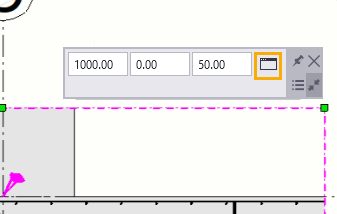
The new model view has the same name as the drawing view. As the view is temporary, the name is in ( ) parentheses.
The temporary model view is removed when you close the view. If you want to keep the view, rename it or just remove the parentheses from the view name. You can easily rename the view in the Model views side pane.
Drawing view and model view visibility properties aligned
The model view that you create uses the same view properties and filters as the drawing view. The visibility properties for object types and object groups are automatically taken into account when the model view is created. When a property is not set to visible in the drawing view properties, it is also not set to visible in the model view properties.
Limitations
-
Some modeling commands are not available when you have the general arrangement drawing open. For example, you cannot perform numbering, open other models, use the Save as command, or you cannot create any type of other drawings. Tekla Model Sharing commands are not available. To use these commands, you have to close the drawing.
-
Grids cannot be selected between models and drawings.
-
The performance of model changes might be slightly affected while a general arrangement drawing is open. The performance depends on how many drawing views contain modified objects and the related objects in the drawing view that need adjustments.