

 Tiếng Việt
Release notes: Layout manager – Enhanced workflow efficiency with point deviation management
In Tekla Structures 2026, you can now use the new out-of-tolerance check in Layout manager to identify discrepancies between what has been designed and what has been built. This brings considerable efficiency to the workflow between the design office and the construction site.
In Layout manager, you can now define tolerance values for the points measured on the site, and easily compare the locations of the measured points with the corresponding points designed in the Tekla Structures model. With the point deviation data, project quality and accuracy is improved as project teams can make quick, informed decisions based on reliable data from the site and the model, and prevent costly future rework.
Define the tolerance values for measured points
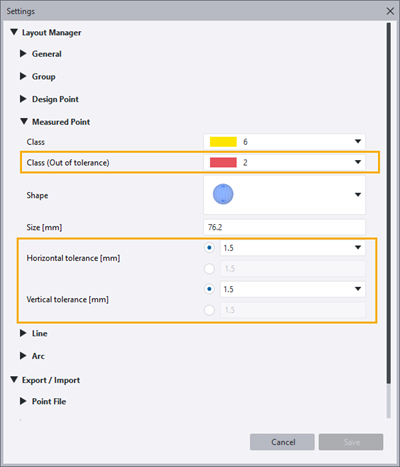
Tolerance values define how much the points measured on the site can deviate from the points designed in the model.
You can define the Horizontal tolerance and Vertical tolerance values in the Layout manager Settings , under the Measured Points section. You can either select a horizontal and vertical tolerance value from the list, enter a desired value in the box below the list, or select that the tolerance values are ignored.
You can also define a separate class for the points that are out of tolerance to easily visualize them in the model.
Compare measured points with design points
Layout manager now automatically compares the points measured on the site with their corresponding design points in the model when layout data from the site is imported to Layout manager. The data is imported in .tfl and .tflx files. Layout manager calculates the deviations between the points based on the tolerance values that you have defined for measured points.
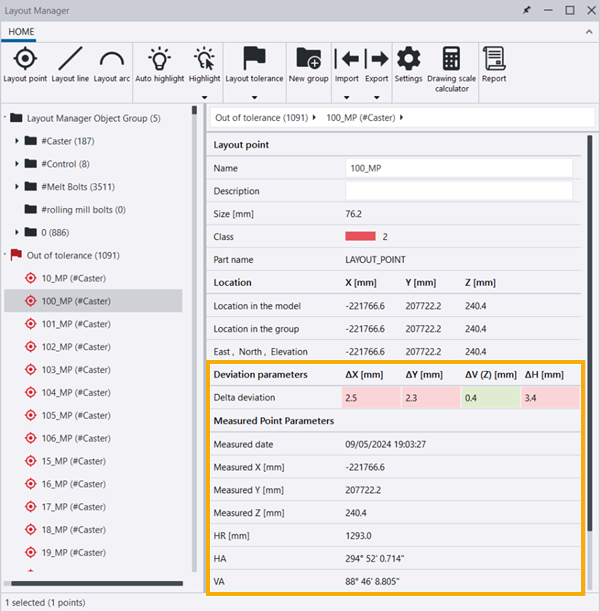
The measured points that are outside the defined tolerance values are listed in the new Out of tolerance group in Layout manager. The Out of tolerance group is empty if there are no points that are out of tolerance.
Measured points now automatically have the suffix _MP added to their original names. This makes it easier to identify and distinguish them from design points both in the model and in drawings. The group name is shown in parentheses at the end of the name.
When you select a measured point in the Out of tolerance group, the point properties on the right show the X, Y, V, and H deviation parameters, and the date when the point was created. The out-of-tolerance values are highlighted against a red background so that you can easily see which values are outside the defined tolerance values.
Visualize measured points in the model
You can use the new  Layout tolerance options in Layout manager to select which layout objects are shown in the model:
-
Show only measured points temporarily hides all layout objects except measured points.
-
Show only out-of-tolerance points temporarily hides all layout objects except the measured points that are out of tolerance.
-
Show all restores the visibility of all layout objects.
Create reports for layout points
You can now create reports for the layout points that you select in Layout manager. When you have selected the layout points or groups that contain layout points in Layout manager, click the  Report button. Then enter a name for the report file. By default, the report file is saved as a .csv file in the LayoutReports folder under the current model folder.
Layout point reports are useful for reporting accurate deviation information. You can open and import the reports in Microsoft Excel, for example.
TSAC-9420