

 Tiếng Việt
Release notes: Enhanced IFC interoperability
In Tekla Structures 2026, managing IFC exports for all versions (IFC2x3, IFC4, and IFC4.3) is now streamlined through a single, enhanced Export IFC dialog. This unified dialog offers direct upload to Trimble Connect, precise object selection, and customizable IFC entity attributes. The IFC4.3 export now includes support for the Building domain. Furthermore, the control of IFC entities within model object properties has been improved. Additionally, the conversion of IFC objects now supports converting IFC4 reference objects into native objects.
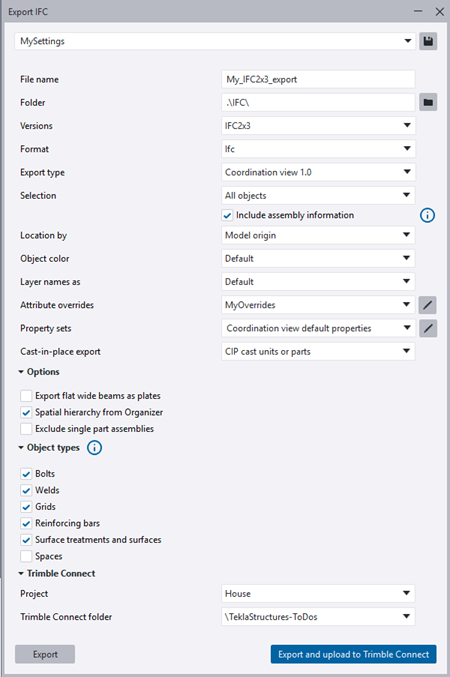
The IFC2x3 and IFC4 export dialogs have been merged to provide aligned controls and a consistent workflow. You no longer need to open two different dialogs to export different IFC versions: When you select , the new Export IFC dialog opens, allowing you to export all IFC versions supported in Tekla Structures.
The new Versions list lets you choose the IFC export version: IFC2x3, IFC4, or IFC4.3. Select the version first, as the dialog updates to show settings relevant to your choice. Note that not all settings apply to every IFC version.
Additionally, you can now use Open API the same way for IFC2x3 and IFC4.
TTSD-69046, TTSD-73253
You can now precisely restrict exports to specific model objects, ensuring accurate communication of design information. It is possible to flexibly export selected objects within an assembly and choose whether to include assembly information without exporting the entire assembly. Additionally, exporting can be further automated with the new filtering option.
In the Object types section, select desired object types and use the following Selection options:
-
All objects: Export all model objects. The export of bolts, welds, grids, reinforcements, surface treatment and surfaces, and spaces depends on whether their respective checkboxes have been selected in the export settings.
-
Selected objects: Export only the selected objects. For example, selecting only a plate in an assembly exports just the plate. Also, if you have a cast unit column with rebars and embed parts, and only want to export the embed parts, select only the parts (column and embed parts) in the model and then select both the Selected objects option and the Reinforcing bars checkbox, because embed parts are modeled as reinforcement.
-
Selected objects and their assemblies: Export selected parts and their assemblies. For example, selecting only a plate in an assembly exports the entire assembly associated with the selected plate.
-
Selection filter: Use a predefined filter to further restrict the export to certain types of objects.
-
Include assembly information: Export information about the assembly hierarchy of objects. Even if only a part of the assembly is exported, the entire assembly hierarchy and its information are included. For instance, if an assembly contains three parts and you choose to export only two, this option ensures that the export file recognizes these two parts as belonging to the same assembly. Use this option in conjunction with a Selection option, such as Selected objects.
TTSD-71033, TTSD-71311
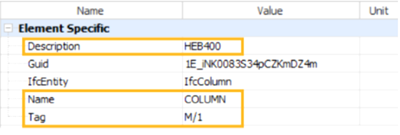
You can now modify IFC entity attributes that were previously fixed (hard-coded). The new Attribute overrides control in the Export IFC dialog allows you to customize specific IFC entity attributes, such as Name, Description, or Tag, by specifying export values tailored to meet project specifications, standards, or customer requirements. You can designate a Tekla property, a user-defined attribute, or a custom property as the export value.
Previously, all IFC entity attributes defined by the IFC schema were hard-coded, limiting control over the output. The essential attributes, such as GlobalId, are still hard-coded. The default value is set to <none>, indicating that the export will use the predefined values.
Examples of IFC entity attributes and their export values:
-
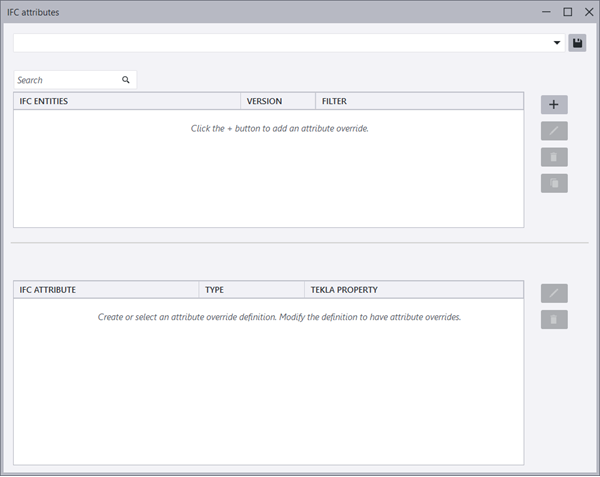
To start defining a new attribute override, select <new> from the Attribute overrides list and click
 Edit.
Edit.This opens the new IFC attributes dialog.
-
To add an attribute override, click the
 plus button on the right. In the displayed Add attribute override dialog, define the desired IFC version, and select one or more IFC entities from the list of entities. You can also apply a filter to further limit which objects are affected. The Attributes to override list is populated with attributes that can be overridden based on your IFC entity selection. If you select more than one IFC entity, the attribute list will display only those attributes that are common to all selected entities. Click Add when ready.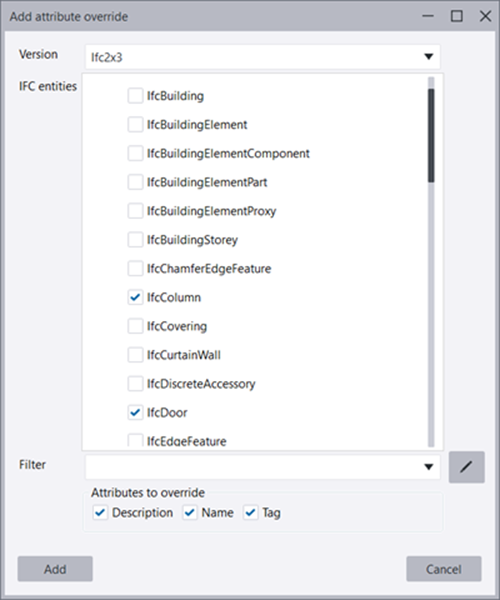
The attributes that you added for the selected entities are displayed on the Attribute definitions list at the bottom of the IFC attributes dialog.
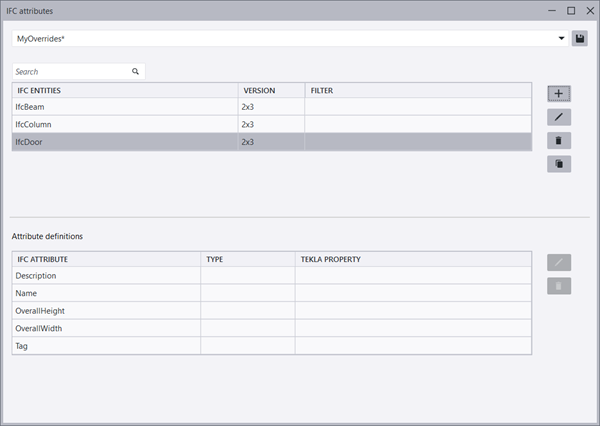
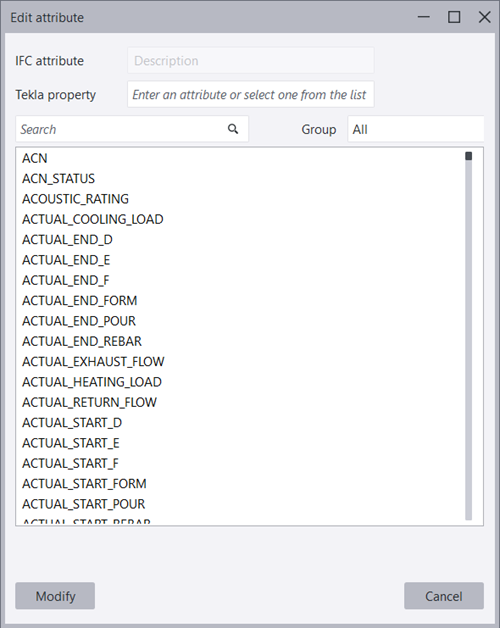
- Now you can customize the attribute definitions. Select an attribute from the Attribute definitions list and click Edit. Select a Tekla property from the list, or enter a user-defined attribute or custom property. To narrow down the list of available attributes, select an attribute group from the Group list. Click Modify when ready.
- When you have defined the needed override rules, give the rule set a name and click
 Save. This will save a new
 <name>.attributeoverridefile in theIfcAttributeOverridesfolder under the current model folder.
TTSD-71028
In the new Export IFC dialog, you can now publish IFC files directly to a Trimble Connect project and folder, matching the workflow used for the native TrimBIM format and removing the need for manual file handling.
-
Specify the Trimble Connect Project to enable direct upload. If the model is already connected to a Trimble Connect project, the Linked Trimble Connect project option is automatically selected. If the model is not connected to a Trimble Connect project, None is displayed, and you can manually select the desired project.
-
Select a Trimble Connect folder in the selected project.
-
You can change the project and folder at any time.
-
Your selections are saved in the export settings.
-
When ready, select Export and upload to Trimble Connect.
TTSD-69043
Now you can more accurately specify the needed IFC entity for each object in the Tekla Structures model so that the created IFC file has the required information.
-
More IFC entity types are supported:
IfcCovering
IfcCurtainWall
IfcRampFlight
IfcStairFlight
-
You can now change the IFC entity for rebars.
-
You can now set the assembly entity to None.
-
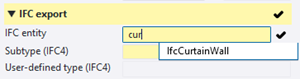
You can start typing the name of the IFC entity and the matching entities are shown in the list.
-
Strands can now be exported as IfcTendon also in the IFC2x3 export. Previously, this worked only in the IFC4 export.
TTSD-71058, TTSD-71057, TTSD-66167, TTSD-65637, TTSD-62542, TTSD-48482, TTSD-61973, TTSD-72410
-
Tekla Structures 2026 supports the IFC 4.3 schema in accordance with the latest buildingSMART release IFC 4.3.2. You can now export models using the IFC 4.3 schema and meet the mandatory requirements for structural deliverables.
-
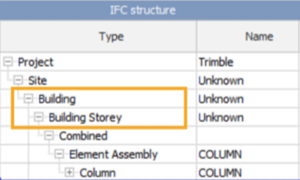
In the IFC4.3 export, the Building domain is now supported in addition to the already supported Bridge domain.
-
The IFC4.3 export now supports the Reference view and Design transfer view export types in addition to the already supported Bridge view export type.
STP-589, TTSD-73781
IFC header information has been changed to comply with the buildingSMART recommendation.
For Tekla Structures, the following information is now written in the IFC file header, in the FILE_NAME record:
Trimble Inc. - Tekla Structures - <version number>
TTSD-70252
In the IFC4 and IFC4.3 exports, when exporting selected objects, grids are now exported only when they are selected. Previously, all grids in the model were exported even if you had selected to export selected objects only. When you select Spatial hierarchy from Organizer, grids are positioned under the corresponding building (whose boundary covers the grids), otherwise under the first building.
TTSD-73001
The IFC4.0 format and any newer IFC4 formats are now supported when converting IFC reference objects into Tekla Structures native objects.
Previously, the object conversion only supported IFC2x3 reference objects.
TTSD-57949