

 Tiếng Việt
Release notes: Upload PDF drawings directly to Trimble Connect
In Tekla Structures 2026, you can now upload PDF drawings directly from Tekla Structures to Trimble Connect with accurate metadata, preventing outdated drawings from being used. When you print drawings, you can automatically upload them with the option to link PDFs directly to the corresponding parts and assemblies in the Trimble Connect model, and store drawings alongside the model objects. The shop and field crews can easily access the latest drawings on a tablet, right next to the actual object they are working on, ensuring that they always have the most up-to-date information. This prevents version control issues where shop or site teams might accidentally use outdated printed drawings. Additionally, API integrators can use the drawing metadata, such as title and revision, to reduce manual data entries and streamline processes. Note that while this metadata is accessible, some effort will be required to integrate it effectively into specific workflows.
As a prerequisite, your Tekla Structures model needs to be linked to a Trimble Connect project.
-
Start by setting up the drawing upload folders that will be used in Trimble Connect. You can set the folders separately for each drawing type.
-
Go to .
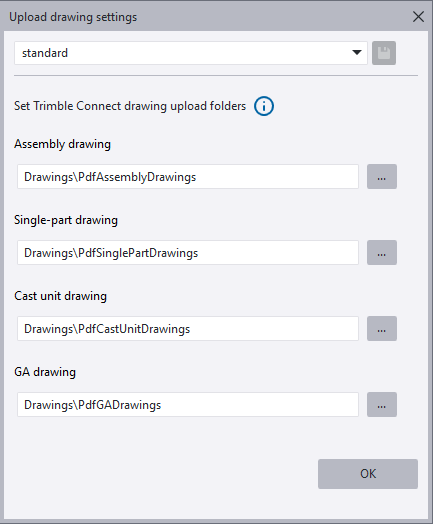
The Upload drawing settings dialog opens.
-
Click … to open the Folder browser dialog. Browse for the folder you want to use for the drawing upload, or click
 to create a new folder.
Alternatively, you can enter the folder path, and a folder is created automatically.
You can upload assembly drawings, single-part drawings, cast unit drawings and general arrangement drawings.
-
Repeat this for all drawing types, if needed. Click OK.
- If needed, you can save the set folder locations to an attribute file. The file extension is TCDrawingSettings.xml, and the file is stored in the model folderattributes folder.
- When you have set the folders, click OK to close the Upload drawing settings dialog.
-
-
To upload the PDF drawings to Trimble Connect, go to .
-
In the Document manager dialog, select the drawings you want to upload to Trimble Connect.
- Right-click and select Print, or click the Print
 button. The Print drawings dialog opens.
 -
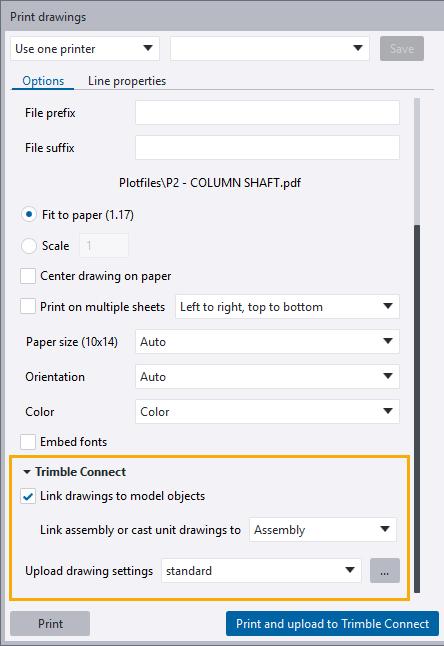
In the Trimble Connect section, select the Link drawings to model objects checkbox if you want to link the fabrication drawings to related model objects in Trimble Connect, if the model has been uploaded.
For assembly drawings and cast unit drawings, you can select whether the drawing is linked to the assembly or the main part.
General arrangement drawings cannot be linked to model objects.
-
If you have not yet selected the PDF drawing upload folder for each drawing type in Trimble Connect, you can do it by clicking … next to Upload drawing settings. By default, the current settings are used.
-
Click Print and upload to Trimble Connect to upload the PDF drawing to the set folder in Trimble Connect.
The upload will take a while. Note that a large model can contain too many objects for the linking, causing performance issues in Trimble Connect.
For more information on performance settings in Trimble Connect, see Display and Performance in Trimble Connect documentation.
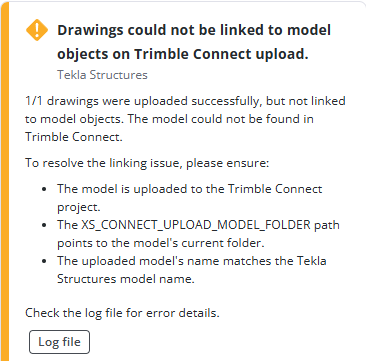
When the uploading is done, Tekla Structures displays a notification stating if the upload was successful or whether there were warnings or errors.
For example, you may get the following notifications.

-
-
If you are an API integrator, you can use drawing metadata to integrate the information in your processes. Drawing metadata is stored as Trimble Connect property sets.
If you are uploading the drawings for the first time and have sufficient rights, or you are a Trimble Connect project administrator, a new property set library and definition will be created to store the drawing metadata from Tekla Structures. The metadata is not visible in files in Trimble Connect, only in model objects, but it can be fetched via Trimble Connect API.
For a reliable workflow, use the API call
/psets/{link}/{libId}/{defId}. You need to identify the drawing’s document ID, as well as the ID of the metadata property set library and the definition. If these are unknown, they can be identified via the Trimble Connect API:- For library:
/forests/{forestId}/trees/{treeId}/nodes/{nodeId}/links - For definition:
/libs/{libId}/defs
Metadata library IDs follow a naming convention:
<projectId>_MetadataLibrary_<8 character length GUID><projectId>_MetadataDefinition_<8 character length GUID>
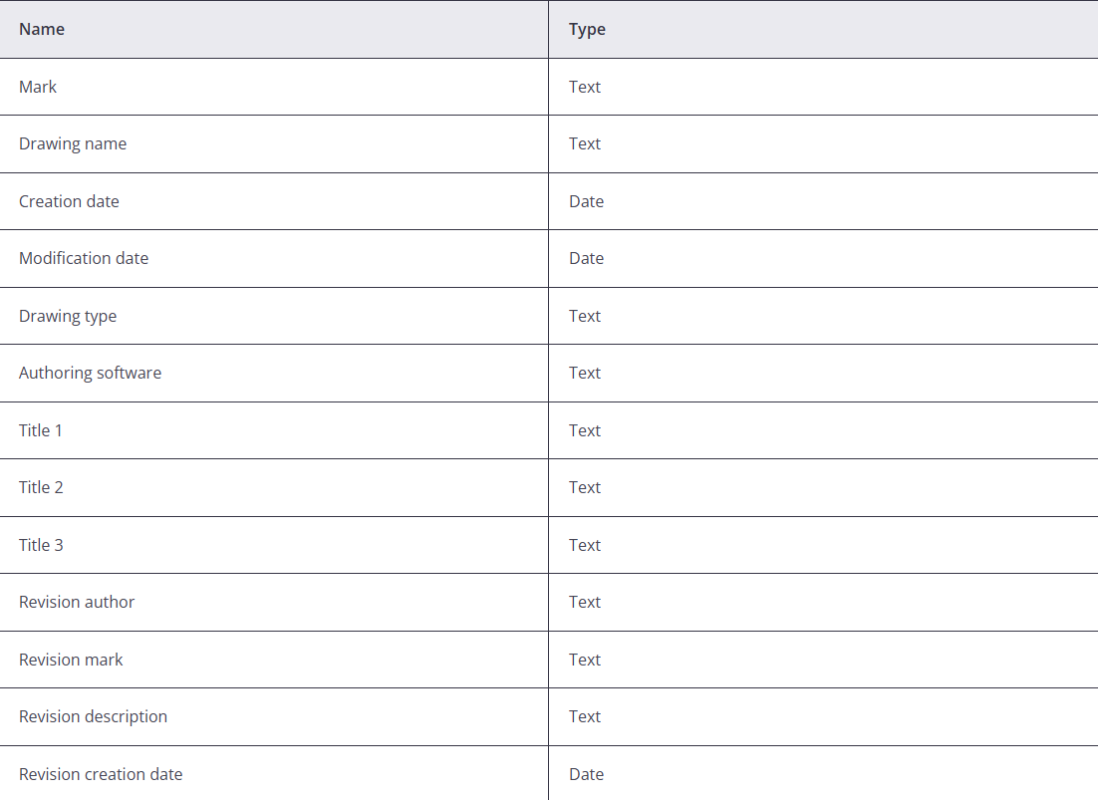
Metadata contains the following information. All fields are of type
Single value. - For library:
TTSD-71062