

 Tiếng Việt
New way to manage model views: Model views side pane
In Tekla Structures 2026, you can quickly organize and manage a large number of model views in the Model views side pane window. The new side pane makes it easy to manage and navigate all model views flexibly but in a controlled manner, and to create general arrangement drawings of the selected model views.
The new Model views side pane window replaces the previously used Views dialog.
If the Model views window is not open, click the  button in the side pane. The Model views side pane window opens on the left side of the screen and lists all the views of that model. You can organize the model views in separate folders, preview the views without opening them, and, if the model has been shared with Tekla Model Sharing, check which views have been shared and which are your personal views.
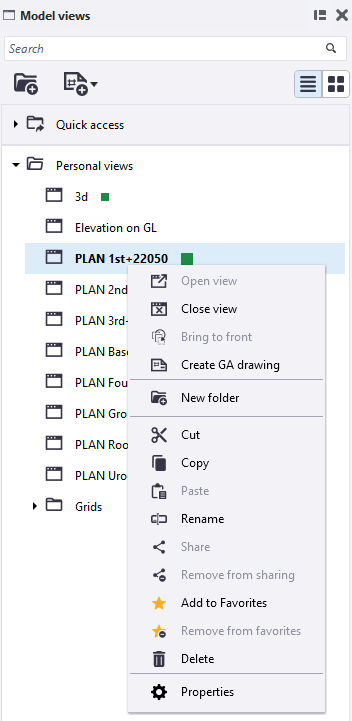
You can, for example, work with the following way in the new Model views side pane window.
| To | Do this |
|---|---|
|
Open or close the selected view Open or close all views in a folder |
You can have up to nine views open at the same time. To open multiple views, use the Shift and Ctrl keys when you select views. |
|
Rename a view Delete a view |
|
|
Use the indicators to quickly check the status of the view |
|
|
Bring a selected view to the front on top of the views |
Right-click a view and select Bring to front. Alternatively, double-click a view in the side pane to bring it to the front as the topmost of all visible views. |
|
Switch between the list view and the thumbnail view |
Click The thumbnail view shows a preview of each view. Thumbnail is visible only if you have opened the view. If a view has never been opened, it does not have a thumbnail. |
|
Open the Quick access folder |
The Quick access folder displays all open and temporary views, and those views that you have marked as favorites.
|
|
Add a view to favorites |
Right-click a view and select Add to Favorites. The view is then added to the Favorites folder under Quick access.
|
|
Use the Search box |
Use the Search box to find specific views. |
|
Create a new folder |
Right-click and select New folder to create your own folders where you can organize your views. You can also have subfolders. Alternatively, create a new folder by clicking |
|
Move a view to another folder |
Drag the selected view to a suitable folder. Alternatively, right-click a view and select Cut. Go to another folder, right-click, and select Paste. |
|
Copy a view to another folder |
Right-click a view and select Copy. Go to another folder, right-click, and select Paste. |
|
Open view properties |
Right-click a view and select Properties. The View properties dialog opens. |
|
Create drawings |
Alternatively, create an empty drawing, or define the drawing properties by clicking To open the created drawing, click the Drawing created. Click here to open the drawing. button. |
|
If the model has been shared using Tekla Model Sharing |
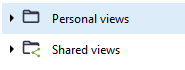
Personal views and shared views are organized in separate folders.
Views in the Personal views folder are not shared, whereas the views in the Shared views are shared with other Tekla Model Sharing users.
Note that the Share option is available only if the model has been shared using Tekla Model Sharing. Shared views are moved to the Shared views folder, marked as shared |
 the view is the currently active view.
 the view is currently open.
 the view is a temporary view. Rename the view to make it a permanent view. Temporary views have a default name in parentheses.
 the view is shared in
  to switch between the list view and the thumbnail view.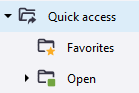
 .
. .
.
TTSD-69570
If you manage Tekla Structures settings for other users, update customized settings for users.
Update ribbons for changes to model views
If you have customized the ribbons, update your customized ribbon to replace the previous View list button with a new Model views button.
1. On the View tab of the modeling ribbon, add the new Model views button.
- Add ribbon item: Simple button
- Command: Views.ModelViews
- Appearance: Command: Scalable icon
- Text: Command: Short text
2. Remove the previous View list button.
3. On the Views tab of the drawing ribbon, add the new Model views button to the Model views drop-down.
- Add ribbon item: Simple button
- Command: Views.ModelViews
- Appearance: Command: Scalable icon
- Text: Command: Short text
4. Remove the previous Model view list button.
5. Save the changes.
The new ribbon configuration file is saved to C:\Users\<username>\AppData\Local\Trimble\Tekla Structures\2026.0\UI\Ribbons
6. Move the file to the Ribbons sub-folder in a folder that is in the XS_SYSTEM path.